Most website builders work by hiding the web from you. Webflow does the opposite. It gives you the web's actual building blocks on a visual canvas: sections, containers, classes, grids, flexbox layouts, breakpoints. It trusts you to learn how they behave. That's why designers love it. It's also why so many first-time users give up in the first week.
In 2026 Webflow keeps adding AI tools, code components and site audits. The real question hasn't changed, though. Is the control worth the effort? For the right person it clearly is. For someone who just wants a nice page live by Friday, probably not. Our overall score is 3.5 out of 5, and the reasons it isn't higher matter as much as the reasons it isn't lower.
Where the Points Landed
| Category | Score |
|---|---|
| Visual design control | 4.4/5 |
| CMS and content management | 4.2/5 |
| Templates and components | 4.1/5 |
| Hosting and publishing | 4.0/5 |
| Free plan value | 3.2/5 |
| Pricing clarity | 2.9/5 |
| Ease of use for beginners | 2.8/5 |
| Overall | 3.5/5 |
The pattern is easy to read. Webflow scores well on the things it's built to do and poorly on the things it expects you to handle yourself.
A Builder That Speaks Fluent CSS
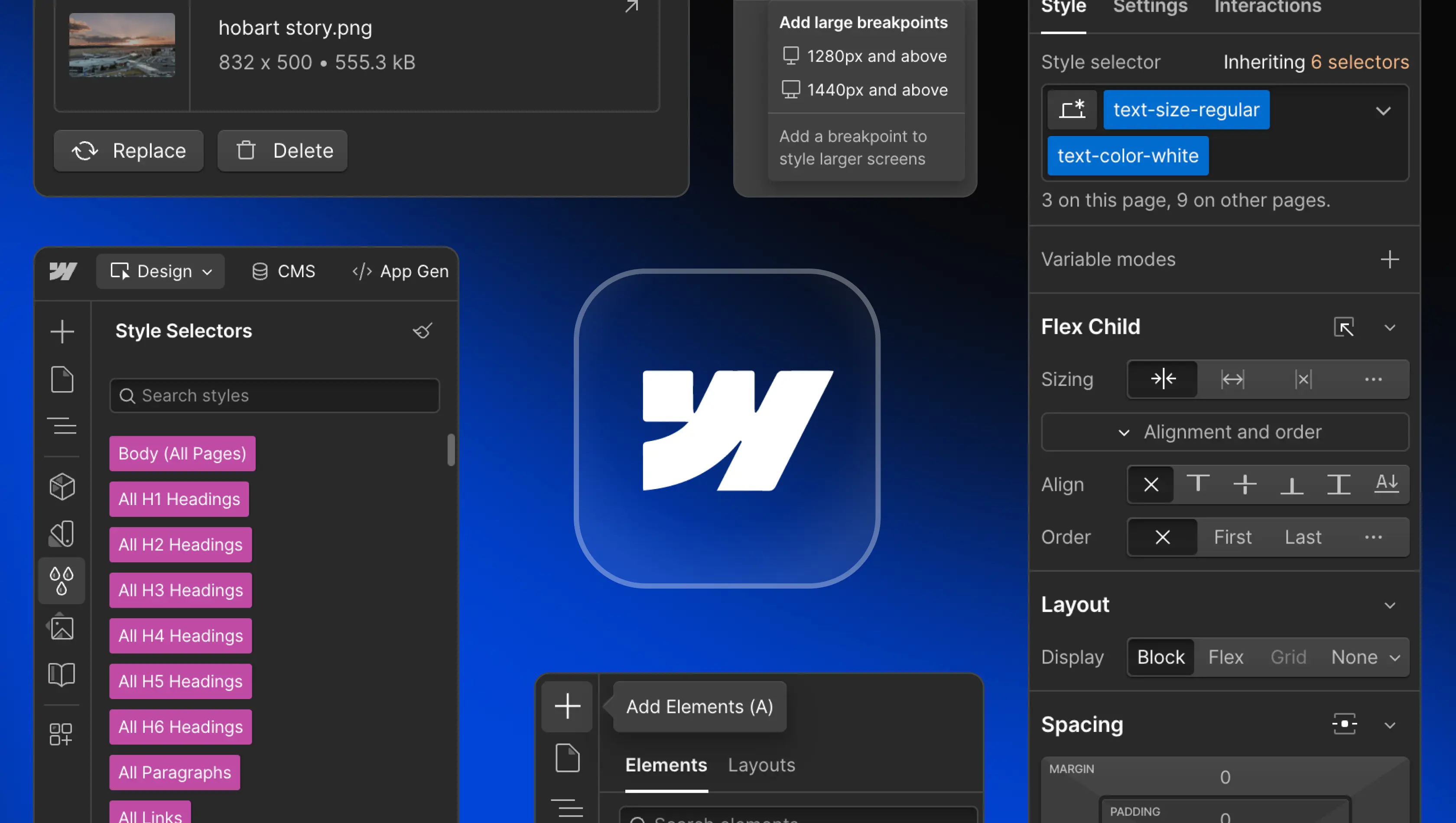
Webflow combines design, content management, hosting, collaboration and publishing in one browser-based tool called the Designer. You control layout, typography, spacing, responsive behaviour, forms, animations and reusable components without writing the HTML and CSS by hand. Freelancers, agencies, marketing teams and startups use it for portfolios, company sites, blogs, landing pages, directories, content-heavy publications and online stores.
The CMS is the quiet star. Collections for blog posts, case studies, team members or directory listings feed dynamic templates, so a site with hundreds of pages can stay consistent. Components, variables and shared classes push the same way, towards a proper design system rather than a pile of one-off pages.
The First Week Is the Hard Part
New users have to learn how parent and child elements interact, why margin isn't padding, and how one edit to a shared class can quietly change a dozen pages. Nothing about that is unreasonable. It's simply how the web works. It still catches people off guard when they expect a theme editor.
The sensible route is a throwaway practice site, not a client job. Build a navigation bar, a hero section, a three-column block, a contact form and a small CMS collection. Webflow University, the help articles and the in-product assistant cover most of the questions you'll hit along the way. Once the box model clicks, the Designer stops feeling crowded and starts feeling fast.
Templates Help, Up to a Point
The template marketplace covers agencies, restaurants, software companies, property, events, ecommerce and much more. Some templates are free and others cost a one-time fee. A good one hands you tested page structure, typography and responsive layouts from the start.
Read the listing before you buy. Check that it includes the CMS Collections, interactions, ecommerce features and pages you actually need. Preview the mobile layout. Note that some paid templates are licensed for a single project. Heavy customisation still needs the same class and breakpoint knowledge as building from scratch.
Free, but Only for Practice
The free Starter option lets you learn the Designer and publish to a Webflow subdomain. It also includes a few staging sites and a small monthly allowance of AI credits. It's genuinely useful for prototypes and client previews. It isn't a launch plan. Pages, CMS items, collaborators and code export are all limited, and you can't connect a custom domain without paying for a Site plan.
Two Kinds of Plan, One Bill
This is where Webflow loses the most goodwill. A Site plan pays for hosting and features on one published website. A Workspace plan covers the people who build it: seats, staging, code export and professional account features. Many buyers end up paying for both.
| Plan | Listed 2026 price | Suits |
|---|---|---|
| Starter Site | Free | Learning and subdomain prototypes |
| Basic Site | $15 a month, billed yearly | Static business sites without CMS |
| Premium Site | $25 a month, billed yearly | Blogs, directories and CMS-driven sites |
| Ecommerce Standard | $29 a month, billed yearly | Small shops getting started |
| Freelancer Workspace | $16 a month, billed yearly | Freelancers juggling client projects |
| Agency Workspace | $35 a month, billed yearly | Agencies with bigger workloads |
Webflow did tidy things up in 2026. The Premium Site plan now combines the earlier CMS and Business direction for new purchases. Monthly billing still costs more than annual, though. Bandwidth, localisation, analytics, optimisation, extra seats and ecommerce can all push the total up. Price the whole setup, not the first number on the pricing page. And if hosting is your main concern, see how Webflow stacks up in our poll on the best web hosting companies, and cast your vote.
Browser Only, and What Export Really Means
There's nothing to download. The Designer runs in a supported browser and projects live online, so you can sign in on another computer and carry on. Signing in uses email and password or Google. Most lockouts come from trying a Gmail password on an account that was created with Google sign-in. If you manage several clients, check which Workspace you're in before you publish.
Two limits deserve plain words. First, there's no full mobile editor. Serious design work needs a laptop or desktop. Second, code export on eligible paid Workspace plans gives you static HTML, CSS, JavaScript and assets, but not the hosted services. CMS content, form handling, site search, ecommerce and user accounts all need replacements if you move elsewhere. The Marketplace's third-party Apps extend forms, analytics and automation, but they don't change that picture.
Strengths and Sore Spots
- Strong: precise control over layout, spacing, typography and responsive design
- Strong: a CMS that handles blogs, directories and case studies with ease
- Strong: built-in hosting, SSL, backups, staging and forms
- Strong: interactions and animations without writing every line of code
- Weak: a real learning curve for beginners
- Weak: Site plans, Workspace plans and add-ons that take effort to decode
- Weak: larger projects can slow down and need disciplined class naming
- Weak: advanced ecommerce may call for extra tools or another platform
Who Should Pay for It
Designers, agencies and marketing teams who care about custom layouts and flexible content will get their money's worth. People who want the cheapest option, offline editing or a one-hour setup will be happier with a more guided builder. Our advice: start free, finish a beginner tutorial, rebuild a small real site, and test the template, CMS, mobile layout, forms and export needs before you buy anything.
Can I use my own domain for free?
No. Free sites publish to a Webflow subdomain. A custom domain needs a paid Site plan for that website.
Is Webflow good for SEO?
It gives you control over titles, descriptions, alt text, redirects, sitemaps and indexing. Rankings still depend on your content, site structure and performance.
Can I run a proper blog on it?
Yes. The CMS handles posts, authors, categories and dynamic templates, though a production blog normally needs a CMS-capable plan such as Premium Site.